Office ergonomics: setting up a safe workstation
Office ergonomics reduces neck, back, wrist and eye strain. Learn how to set up desks, chairs and screens, and what to document for your WHS duties.
이 글은 현재 영어로만 제공됩니다.
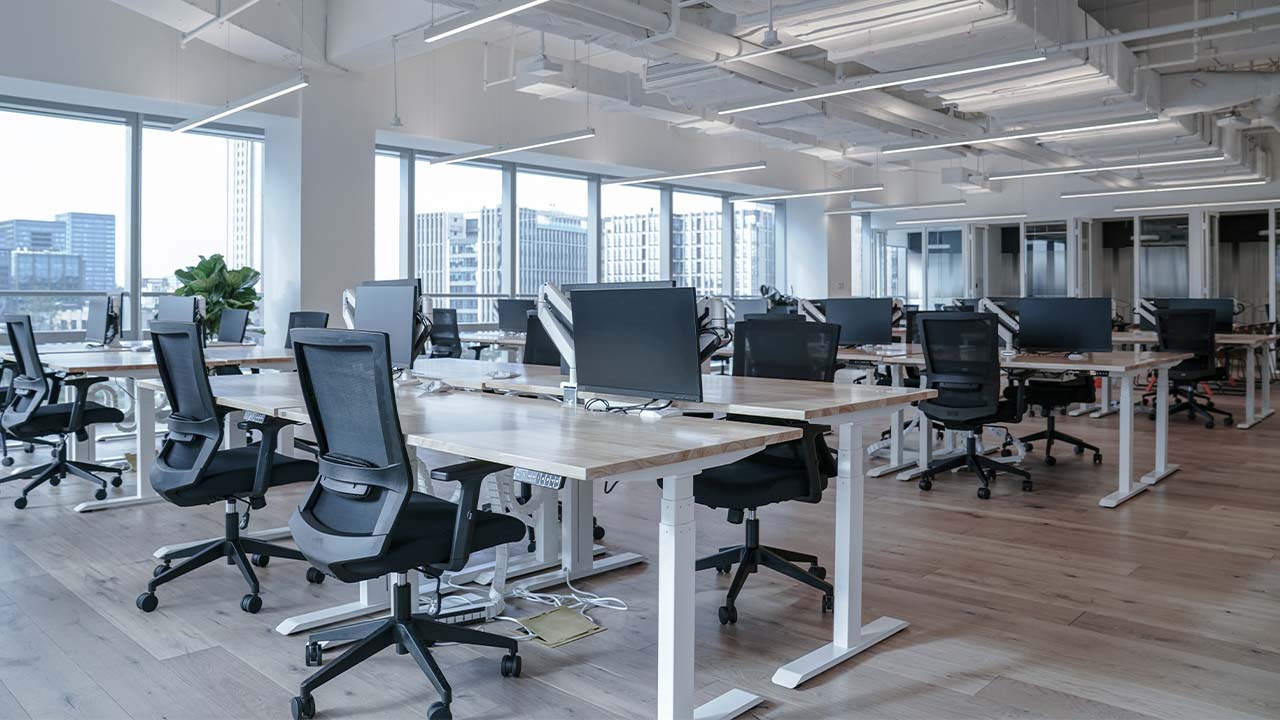
Office ergonomics means setting up a workstation so it fits the person using it. A well-set desk, chair, screen and keyboard reduce the strain that leads to neck, back, shoulder, wrist and eye problems. Under the WHS laws, your duty as the business owner includes managing these risks, so ergonomics is part of your safety system, not just a comfort issue.
Most office workers sit for much of the day, and that's the problem. Poor posture held for hours is a common cause of musculoskeletal disorders (MSDs), which are the most common type of work-related injury. This guide shows what to check at each workstation, how to involve your team, and what to write down.
What is ergonomics?
Ergonomics is the discipline of designing work to suit people. It draws on anatomy, physiology, engineering and psychology. In an office, it means choosing furniture and equipment, arranging the desk, and setting up the way people use them, so the job can be done with the least strain.
Good ergonomic design usually comes down to five things:
- Safety. The setup doesn't create a risk of injury. A chair should be stable, and cables shouldn't trip anyone.
- Comfort. People can work for a long period without strain or pain.
- Ease of use. Controls and adjustments are easy to find and understand.
- Performance. Tools and materials are within easy reach, so people don't have to stretch or twist to do their work.
- Fit. The workstation suits a range of body sizes, and can be adjusted for each person.
What does a safe office workstation look like?
Check each workstation against this list. You don't need expensive equipment for most of it. Adjustments and good habits go a long way.
- Chair. Adjustable seat height, a backrest that supports the lower back, and armrests that let shoulders relax. Feet should rest flat on the floor, or on a footrest if the desk is too high.
- Desk. Enough space for the screen, keyboard, phone and paperwork without clutter. Ideally adjustable, so people can change between sitting and standing.
- Screen. Top of the screen at or just below eye level, about an arm's length away. Use a monitor stand or a laptop riser if you use a laptop all day, and add an external keyboard and mouse.
- Keyboard and mouse. Close to the body, with elbows relaxed at the sides and wrists kept straight rather than bent up, down or to the side.
- Lighting. Enough light to read comfortably, without glare on the screen from windows or ceiling lights. Task lighting helps with close work.
- Layout. Frequently used items within arm's reach, so people don't reach back or twist to get them.
- Cables and walkways. Cords secured out of the walkway, and clear space to move around the desk.
Which office tasks carry the most risk?
Desk work isn't risk-free just because it's indoors. The main issues are:
- Laptop use for long periods. Laptops force a bad posture, with the screen too low or the keyboard too high. A separate screen and keyboard fixes most of this.
- Phone use with the shoulder. Holding a phone between ear and shoulder strains the neck. A headset is the fix.
- Repetitive typing and mouse use. Repeated wrist movement and gripping can cause pain over time.
- Sitting all day. Even a well-set chair becomes uncomfortable if people don't change position.
- Reception and shared desks. Desks used by several people often aren't adjusted for each user, and that's a common source of complaints.
- Hot-desking. If people move around, their workstation setup may change daily. Plan for that.
If your business also has warehouse, retail or field staff, the same principles apply to their tasks. Our guide to manual handling techniques covers lifting and carrying, and the guide to workplace ergonomics in logistics covers warehouse work.
How do you set up a workstation step by step?
- Start with the chair. Adjust the height so the feet are flat and the thighs are roughly parallel to the floor. Set the backrest to support the lower back.
- Set the desk. The desk height should let the elbows rest comfortably at the sides, with forearms roughly level when typing. If the desk can't be adjusted, change the chair or add a footrest to fit the person.
- Place the screen. Set it at eye level and an arm's length away. Adjust tilt so you can see the screen without bending the neck.
- Position the keyboard and mouse. Keep them close, at the height that keeps wrists straight. Put the mouse on the same level as the keyboard, so the arm doesn't reach up.
- Check the light and glare. Turn screens side-on to windows where you can, and use blinds or filters to reduce reflections.
- Set up the layout. Move the phone, printer, bins and regularly used files within easy reach.
- Take a break. Stand, stretch and change position regularly. Short breaks are better than one long one.
- Review it. Check the setup again after a month, and whenever someone's role or equipment changes.
Who should be involved?
Ask the people who use the desks. They know what hurts, what they reach for and what gets in the way. Under section 47 of the WHS Act, you must consult workers on matters that affect their health and safety, including workstation design. Involve your health and safety representative if you have one.
Offer each person an individual check of their workstation, not just a one-off group talk. Some people need a different chair, a monitor on a stand or a different desk height to work safely. Where someone reports pain or symptoms, respond quickly, and encourage them to see a health professional.
What should you document?
Your WHS duty is to manage the risk, so the record matters. Keep a simple register that shows:
- which workstations you've checked, and when
- what adjustments or equipment were provided
- any reports of pain, discomfort or eye strain, and what you did about them
- training given on setting up a workstation
- when you'll review the setup next
Use a workplace inspection checklist to record your checks, and an office work SOP to give staff a standard set of steps. If people work from home, a working from home policy helps set expectations about their workstation.
Under the Model Code of Practice on hazardous manual tasks, you should identify and assess the risks of manual tasks, including repetitive work, and review the controls you put in place. That applies to office tasks as much as to warehouse work.
SafetyDocs has inspection checklists, office SOPs and policies you can adapt for your workplace. Job and site details fill themselves in, and staff sign the document from their phone with a text, link or QR code. When your ergonomic controls change, you update the document once and everyone who signed is asked to sign the new version. This helps you show your records are current. It doesn't make you compliant on its own.
Ways to build wellbeing into the office
Ergonomics is one part of wellbeing. Short movement breaks, encouraging people to stand and move, and making sure people can get outside at lunch all help. Stress and fatigue also affect how people sit and move, so look at workloads and breaks too. Our guide to mental health at work covers the wider picture.
Make ergonomic training part of induction, and repeat it when people change desks or start working from home. A short session with a demonstration is usually more useful than a long document nobody reads.
Common questions
Do I have to provide an ergonomic chair? Under the WHS laws you must manage the risk of injury from the workplace, and an unsuitable chair is one of the risks. You don't have to buy a specific brand, but you do need to assess the workstation and provide adjustments or equipment that reduce the risk.
Who pays for a sit-stand desk or a monitor stand? The employer usually provides equipment needed to manage risks at work. Check your workplace policy and any agreements with staff, and don't let cost stop you from fixing a known risk.
How often should I check workstations? At least when people start, when they change desks or roles, and when they report a problem. Many businesses also do a yearly check.
Does working from home count? It can. Employers still have WHS duties for work done at home, so far as is reasonably practicable. Your policy should say what you'll check and what staff need to set up.
This is general information, not legal advice. Check the current law with your WHS regulator.
템플릿 라이브러리
이제 바로 쓸 수 있는 SWMS로 직접 적용해 보세요.
호주 업종에 맞게 작성된 SWMS 템플릿을 둘러보세요. 어떤 템플릿이든 무료로 미리 보고, 몇 분 만에 내 작업에 맞게 고칠 수 있습니다.
이 작업을 위한 템플릿
템플릿 라이브러리 둘러보기관련 안내서

위험 요소
Ergonomics in logistics: preventing strains and injuries
Practical ergonomics for warehouses and transport: spot manual handling, awkward posture and poor layout, then fix the design, the training and the cab.
위험 요소
Manual handling techniques: safe lifting and handling at work
How to assess manual handling tasks, lift and carry safely, use equipment, and meet your WHS duties for hazardous manual tasks in Australia.

위험 요소
Environmental risks in industrial operations: 10 key areas
The environmental risks most common in industrial operations, from air and water pollution to chemical spills, and how to manage each one on site.